Getting Started Guide
Flow Club Companion
Gentle audio cues and time awareness for Flow Club sessions.
Quick Start
- 1Install the extension (Chrome or Firefox)
- 2Open a Flow Club session at in.flow.club
- 3Refresh the page once — you should hear a tick sound
That's it. Scroll down only if you want to customize or troubleshoot.
Setup
Install the Extension
Your First Session
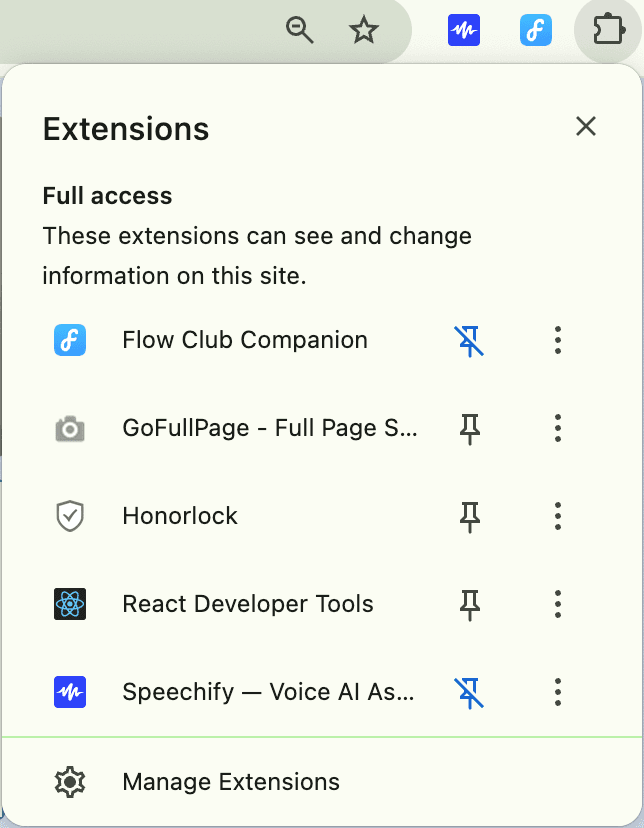
Pin the extension
Click the puzzle icon in your browser toolbar → find Flow Club Companion → click the pin so it stays visible.
Open a Flow Club session
Go to in.flow.club and join or start a session. Make sure the timer is running.
Refresh the page once
This lets the extension sync with the timer. You should hear a soft tick sound.
(Always refresh after changing settings too — browser limitation, not user error)
You're done
Default settings are already on: tick sound (8% volume), voice announcements every 5 minutes.
Already had Flow Club open? Refresh the page so the extension can read the timer.
Reference
Read when you need it
All Settings Explained
Click the extension icon to open settings. Here's what each one does:
Audio On▼
Master switch for all sounds. If this is off, nothing plays.
Tick sound▼
A soft metronome-style tick every second. Helpful for time blindness and staying grounded.
Default: ON at 8% volume. Turn off if you find it distracting.
Voice announcements▼
Spoken time updates so you don't have to check the clock. Best for Pomodoros and long deep-focus sessions.
Default: ON, every 5 minutes. For 25+ min sessions, starts at 24 minutes remaining.
Mute during breaks▼
Automatically silences sounds during breaks.
Currently disabled — this feature depends on Flow Club adding a session phase indicator to their UI.
Seconds countdown▼
Announces final seconds (50, 40… 10…). Helpful for transitions.
Default: OFF. Can feel intense for some — totally optional.
Volume controls▼
Tick volume: Controls tick loudness only. Voice volume: Controls spoken announcements.
Tasks Tab
Optional feature for gentle structure. Good for morning routines, reducing decision fatigue, or ritual-based focus.
Two-way task syncing
Copy tasks back and forth between the extension and Flow Club's “My Goals” section. Task text and checkmarks are preserved.
- Start with goals in Flow Club → refine them in the extension
- Build routines in the extension → send them into a session
Use this only if it helps. It's there to reduce friction — not to add another system.
Troubleshooting
Quick checklist
- Click the puzzle icon → pin Flow Club Companion to the toolbar
- Flow Club page refreshed after install/settings change
- Session timer is running
- Audio is on in extension settings
- Browser tab isn't muted
Most issues are solved by refreshing once after changing settings.
Still stuck? Reach out here →
A note on finding your setup
Everyone experiences time blindness differently. Some prefer every-minute announcements, others want just ticking, others want 5-minute verbal check-ins only.
There's no “correct” setup. If it doesn't click immediately, try adjusting the cue types and volumes before giving up.
Community Shoutout
“…we've loved seeing some of you hack together your own customizations — from Liddy's extension that adds ticking sounds, to scripts that categorize tasks…”
— Ricky Yean, co-founder of Flow Club